











This page explains the Bongobongo login process from start to finish. Access your account through the official website only, rather than a link sent in a random message or a copy of the site hosted elsewhere. If you have already registered, you normally need the phone number or email address connected to the account and your password.
After signing in, you can check the balance, review pending and settled bets, manage available account services and view transaction history in one place. Browsing information while logged out does not authenticate you, and betting activity requires access to the account. The sections below cover the sign-in steps, password recovery, common errors and practical safety measures.
How to Login to Bongobongo
Open the website in an up-to-date browser and locate the sign-in control in the top-right area of the header. On a phone, the same control may be inside the compact navigation menu. Selecting it opens the sign-in form.
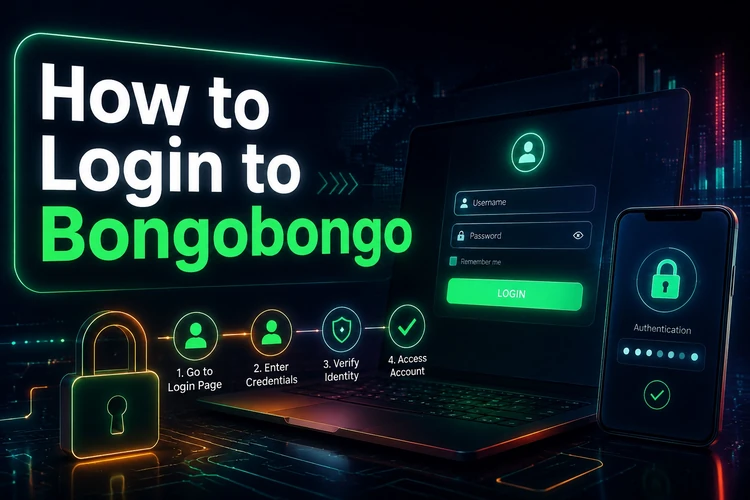
Enter the identifier used during registration in the first field. This is often a Zambian mobile number, although the correct identifier depends on the details supplied when the account was created. Enter the password in the second field, observing capital letters, numbers and symbols exactly. Submit the form and wait for the page to refresh; a visible account balance or account menu indicates that authentication succeeded.
- Step 1: Open the official website in an up-to-date browser.
- Step 2: Select the sign-in button in the top navigation bar.
- Step 3: Enter your registered phone number or email address.
- Step 4: Type your password exactly as created.
- Step 5: Submit the form and wait for the page to refresh.
- Step 6: Check the account area before placing a bet.
What Login Details Are Required
Two details usually identify the account: the registered identifier and the password. The identifier is the phone number or email address supplied during registration. The password is private, case-sensitive information chosen by the account holder and should not be shared with another person.
Small input errors can cause a rejected attempt. Check for an incorrect country code, a capital letter changed by autocorrect, a trailing space pasted from another app, or confusion between zero and the letter O. If the form rejects the details twice, retype both fields manually rather than relying on saved browser values, which may contain an outdated password.
Password Recovery Guide
If you cannot remember the password, use the «Forgot password?» link inside the sign-in form. The recovery process may ask for the phone number or email connected to the account so instructions can be sent to a contact you control. If you no longer have access to that contact, customer support may need to help with the next step.
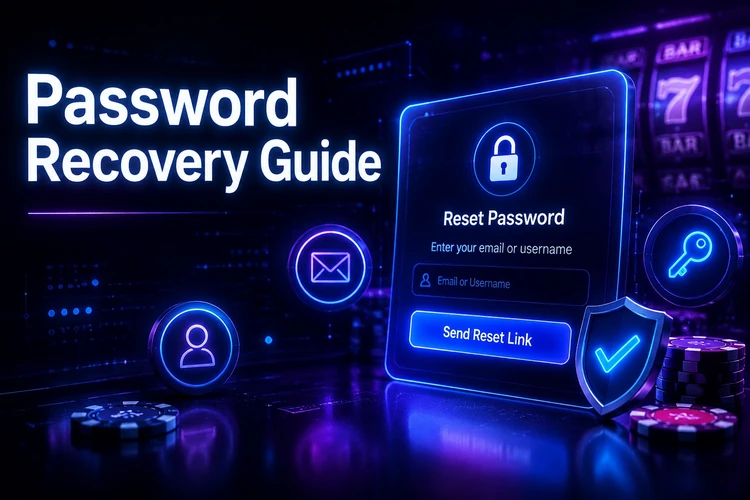
Follow the instructions provided through the recovery channel and create a new password that is unique to this account. A long passphrase is easier to remember than a short predictable word, but it should still include a mixture of letters, digits and symbols where accepted. Store it in a reputable password manager, not in an exposed note. After resetting it, sign in once to confirm that the new details work and replace any old saved password in your browser.
Why Login May Not Work
The most common causes are an incorrect password, an identifier that does not match the registration details, an outdated browser or a weak connection. A browser may also block a required script when cookies are disabled, while unstable mobile data can leave the request waiting without a clear error.
Work through the checks in order: retype both fields, switch between Wi-Fi and mobile data, clear cookies and cache for the site, and try another browser or a private window. If all attempts fail, the platform could be undergoing short maintenance, so wait a few minutes before trying again. For a continuing problem, contact support with the exact error text and when it appeared; never include your password.
Mobile Login
An Android browser such as Chrome uses the same account details and sign-in form as a computer. The responsive layout adjusts to a smaller screen, although rotating the phone can make a crowded form easier to view. Keep the browser and phone operating system updated to improve compatibility.
If a separate mobile app option is available on the site, review its instructions before installing anything. On a phone, use a screen lock, avoid entering credentials on a shared device, and be cautious with public Wi-Fi. Log out after using a borrowed handset, especially if the browser offers to save the session.
Login Security Best Practices
Use a password that is unique to this account and avoid predictable information such as a name, phone number or birthday. A password manager can generate and store a strong alternative. Change the password promptly if someone may have seen it or if the same password was used on another service.
Bookmark the official address and inspect the browser address bar before entering credentials. Do not send your password to anyone claiming to provide assistance. Log out on shared devices, keep the phone protected by a screen lock and review account activity for anything you do not recognise. Players should also use the available responsible gambling tools to set personal limits and take breaks. Betting is for players aged 18+ only.
Helpful Tips Before Logging In
Before opening the form, confirm that the connection is stable and close duplicate tabs of the site. Check the keyboard layout, caps lock and autofill suggestions so an otherwise correct password is not altered during entry.
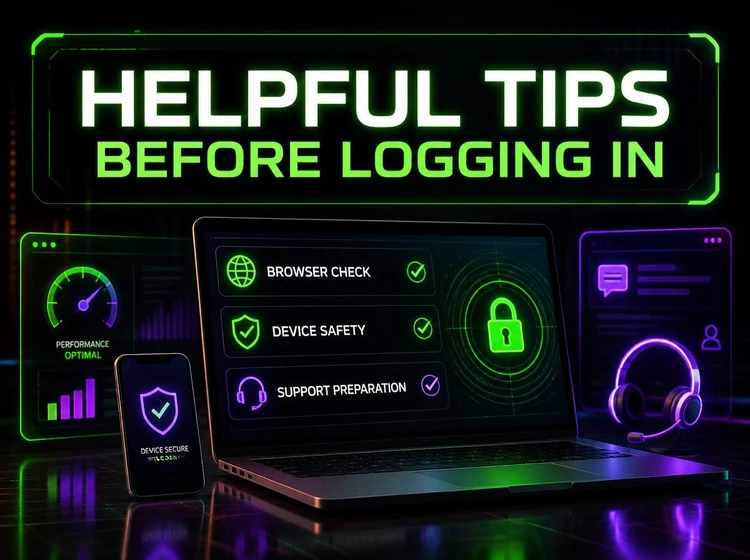
Keep the browser updated and clear the cache if pages render incorrectly. Make sure the contact number or email on the account remains accessible before a recovery request is needed. If you have not registered an account, there is nothing to sign in to yet; complete registration through the official site first, then return to the sign-in form.
FAQ
Open the official website, select the sign-in button and enter the phone number or email used during registration together with your password. Submit the form and wait for the account area or balance to appear.
Sign-in takes place through the form opened by the button in the website header. Bookmark the official address and avoid entering credentials on a copied page or through an unverified forwarded link.
Select the «Forgot password?» link in the sign-in form and provide the registered contact details requested. Follow the recovery instructions sent to a contact you control, and contact support if you no longer have access to it.
Start recovery from the sign-in form, follow the instructions sent to your registered phone number or email, and create a new unique password. Test it by signing in once, then update any old browser-saved password.
Check the identifier, password, keyboard layout, caps lock and browser autofill first. Retype the details, clear the site's cookies if necessary and try another browser or network. Persistent errors should be reported to support without sharing the password.
Yes. An Android browser uses the same sign-in form and account details as a computer, while the responsive layout adjusts to the phone screen. Keep the device and browser updated and log out if the phone is shared.
Account security depends partly on how credentials are handled. Use a unique password, check the address bar before signing in, protect the phone with a screen lock and never send the password to someone offering assistance.
Retype the details, test another connection, clear cookies and try a different browser or private window. If access remains unavailable, contact support with the exact error message and its time, but do not disclose your password.